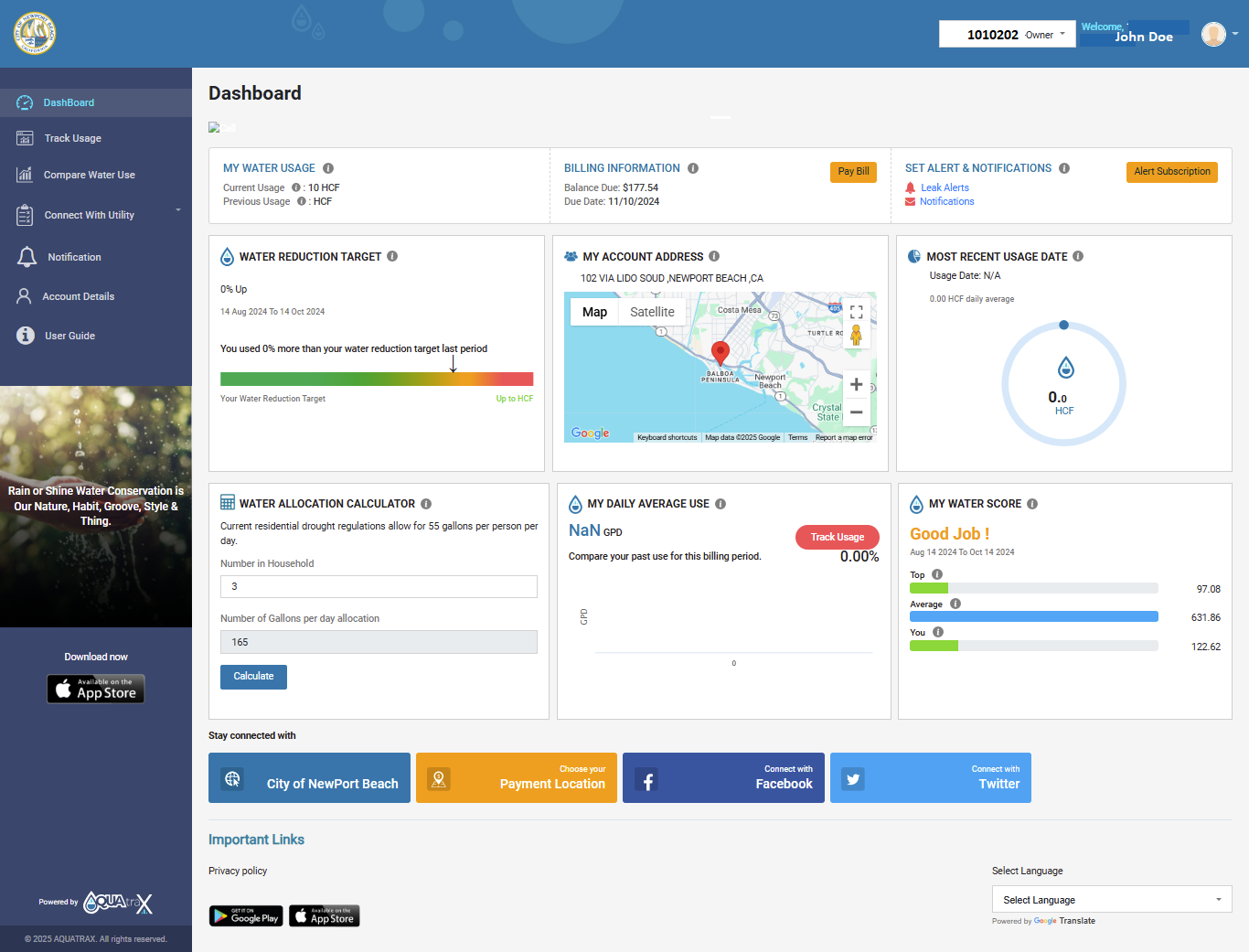
Dashboard
MY WATER USAGEA customer can see the current usage and Year 2020 usage in same month.
BILLING INFORMATIONDisplays customer balance due and due date. Also, a customer can pay the bill by clicking the PAY BILL button.
SET ALERTS & NOTIFICATIONSA user can set usage alerts based on their goal. Also, user can access messages from your utility by clicking notifications.
WATER REDUCTION TARGETA customer can verify if their water consumption satisfies WATER REDUCTION TARGET defined by water utility.
MY ACCOUNT ADDRESSA customer can view their COMPLETE ADDRESS along with the map.
MOST RECENT USAGE DATEA customer can view their WATER CONSUMPTION by month’s average and most recent recorded water usage.
WATER ALLOCATION CALCULATORA customer can know TOTAL WATER ALLOCATION per day, based on the no. of households.
MY DAILY AVERAGE USEA customer can view the PERCENTAGE CHANGE and AVERAGE GALLONS PER DAY in the past two billing cycles.
MY WATER SCOREA customer can COMPARE their water usage in the last billing cycle with the other similar type of customers.
SOCIAL MEDIA LINKSA customer can stay CONNECTED with the utility by following them on social media platforms.
LINKSA customer can view various IMPORTANT LINKS and CONTACT information of the utility.
SELECT LANGUAGEA customer can select the language of their choice to access the AQUATRAX portal.
Track Usage
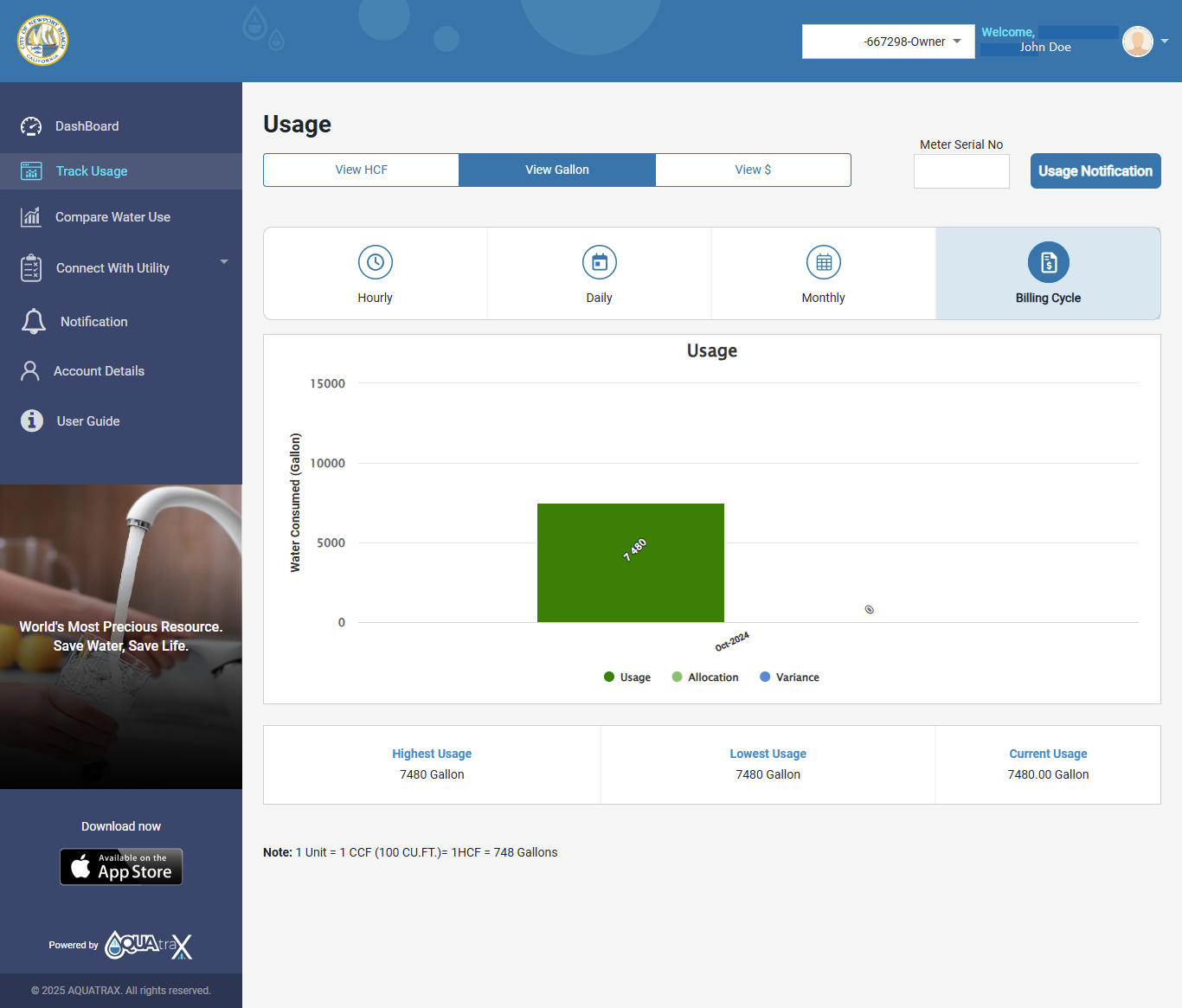
From left navigation panel, user can select “Track Usage”, where user can view Graphical Representation of their usage and keep Track of it.
- Units of Measurements - Unit(CCF), Gallon, and Dollar($).
- Frequency - Hourly, Daily, Monthly and Billing Cycle.
- User can also see the reading of meters (if having multiple meters at the property).
- Hourly, Daily meters reads are only applicable if AMI meters are installed.
- Here you can see the total usage for the current month, highest usage, and the lowest usage.
Usage Notification
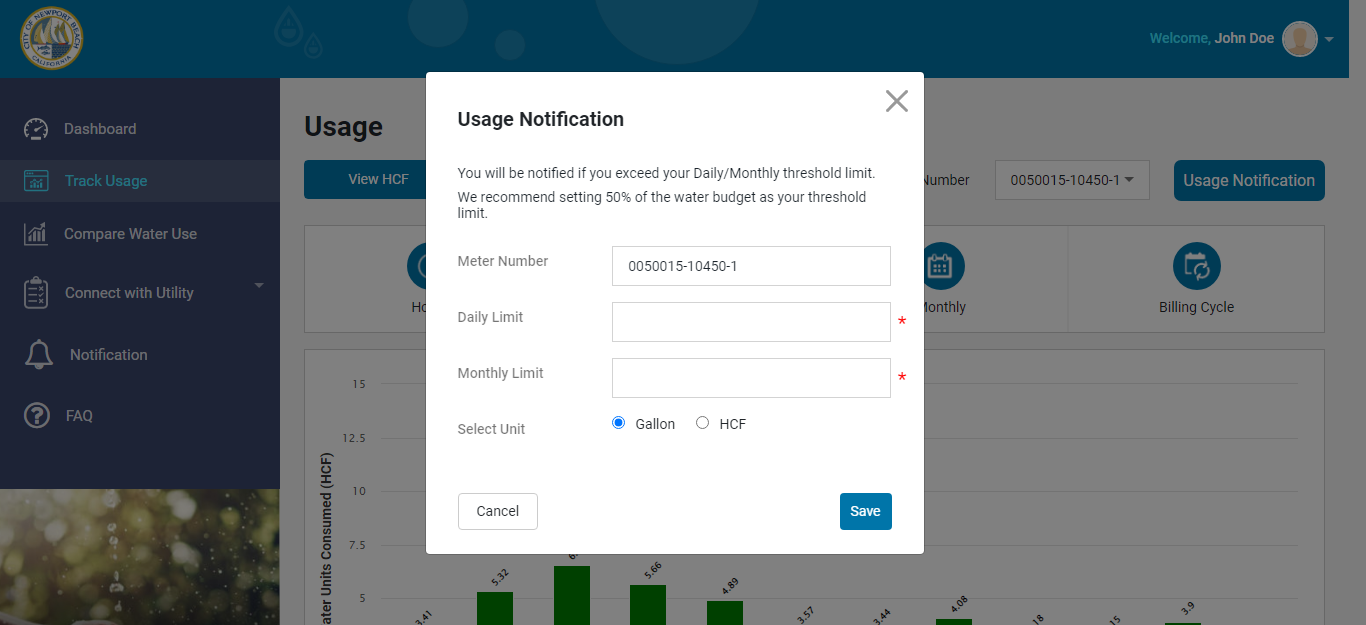
In Track usage, click on Usage Notification . Here, user can see this form, where user can select the meter number and provide daily or monthly usage limits, plus the unit of measurement as well.
User will be notified if user exceeds their Daily/Monthly threshold limit.
Note:-Daily and Monthly details are subject ot AMI meter availability.
Compare Water Use
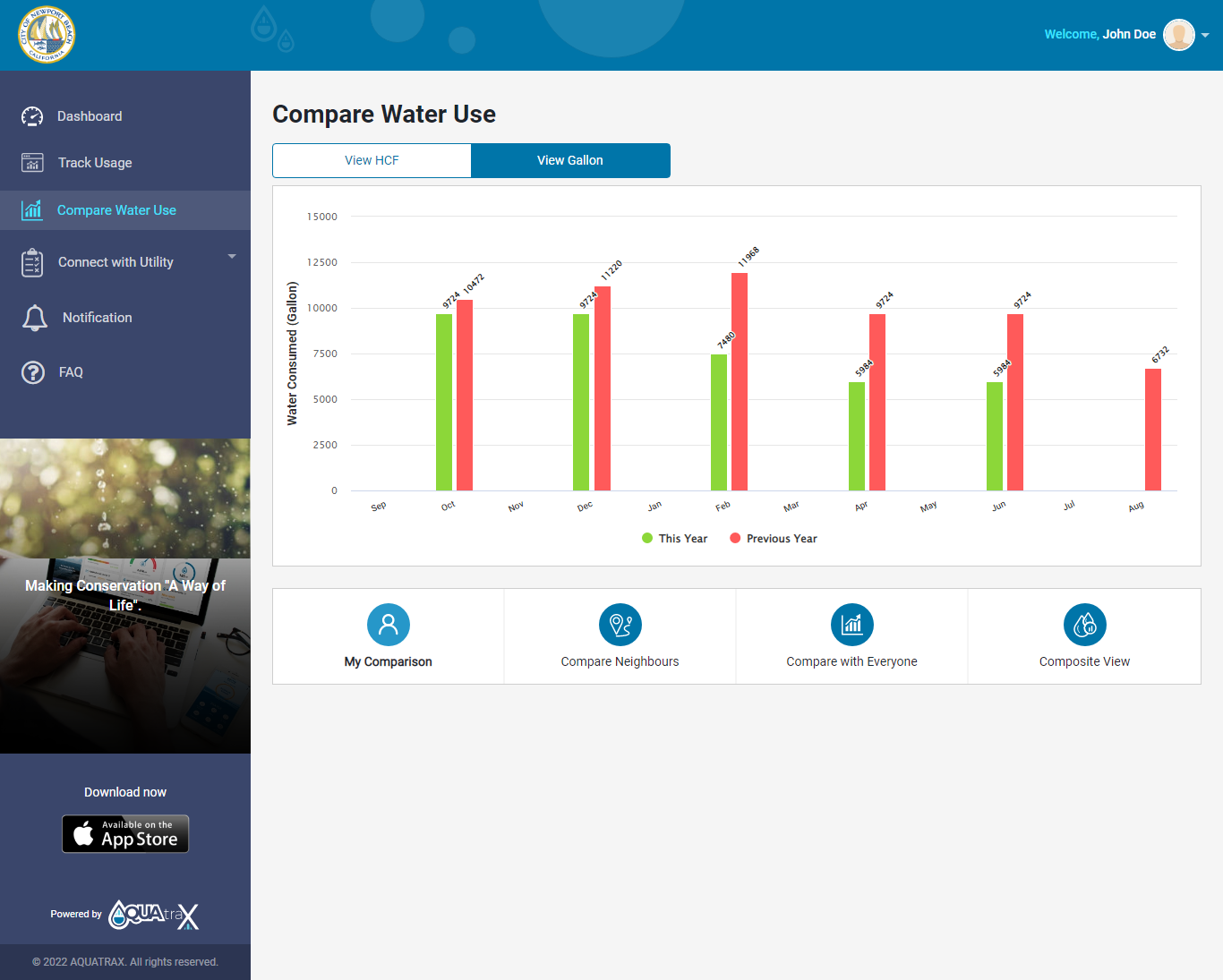
From left navigation, user can select “Compare Water Use” , where user can see graphical representation of their comparison in following categories:
- My Comparison.(User can compare his usage of Current Year and previous Year)
- Compare Neighbours.(user can compare his usage with with average usage of other customer on same zip codes)
- Compare with Everyone.(user can compare his usage with same type(segment) of customer)
- Composite View.(User can see all the above comparison stats at one go)
Connect with Utility
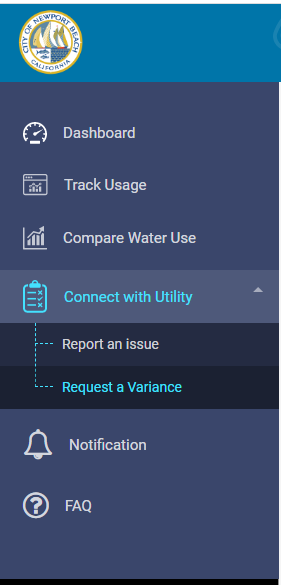
From left navigation, user can select “Connect with Utility”, where user will see two option:
- Report an issue
- Request a variance
Report an Issue
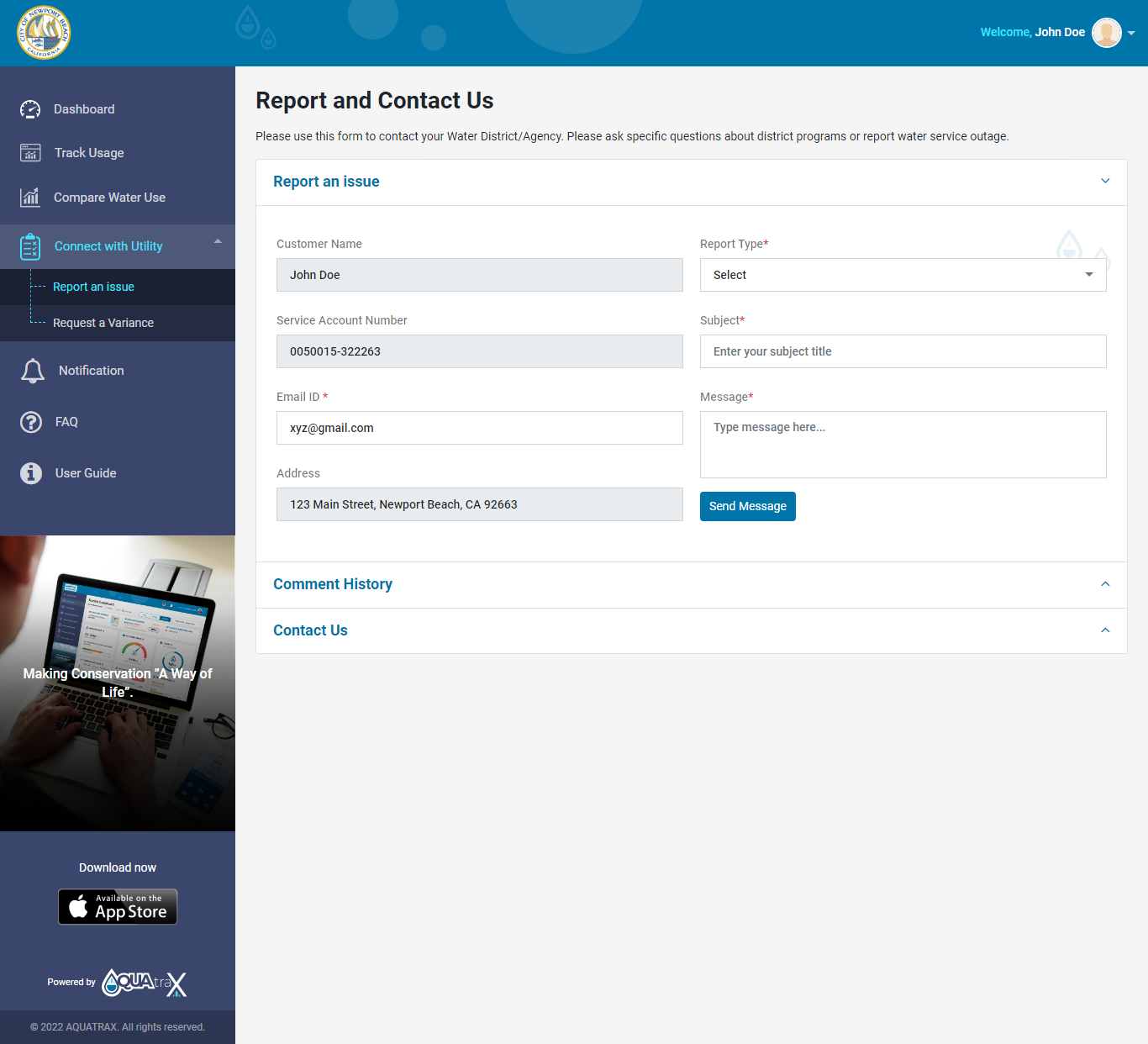
From left navigation tab, user can select “Report an issue”, under Connect to Utility. Follow the below steps to report an issue.
Steps:
- Verify Customer Name, Service Account Number and Address.
- Enter your email id.
- Select the Report Type from the list suitable for the issue. Accordingly enter the subject title as well.
- In the Message Section explain the issue briefly.
- Click Submit.
Request a Variance
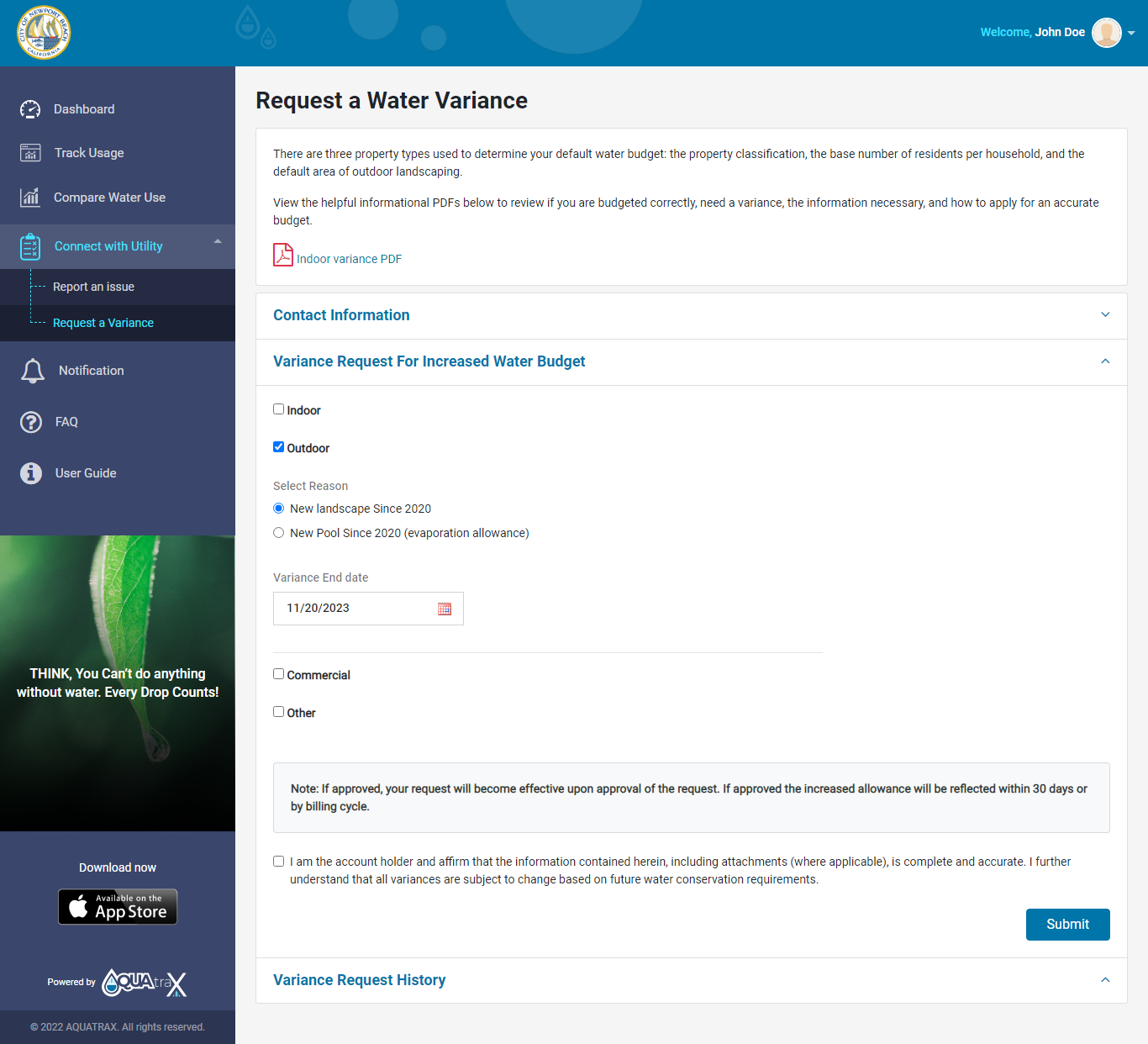
From left navigation tab, User can select “Request a Variance”, under Connect to Utility. Follow the below steps to report an issue.
1. Contact InformationVerify all the contact information and enter the details which are blank. (All the mandatory details are to be entered).
Note: Request a Variance form is for the Users who want an increased water usage allocation than the standard amount specified by the City of Newport Beach. For more details go to https://myaquatrax.com/Variance.pdf .
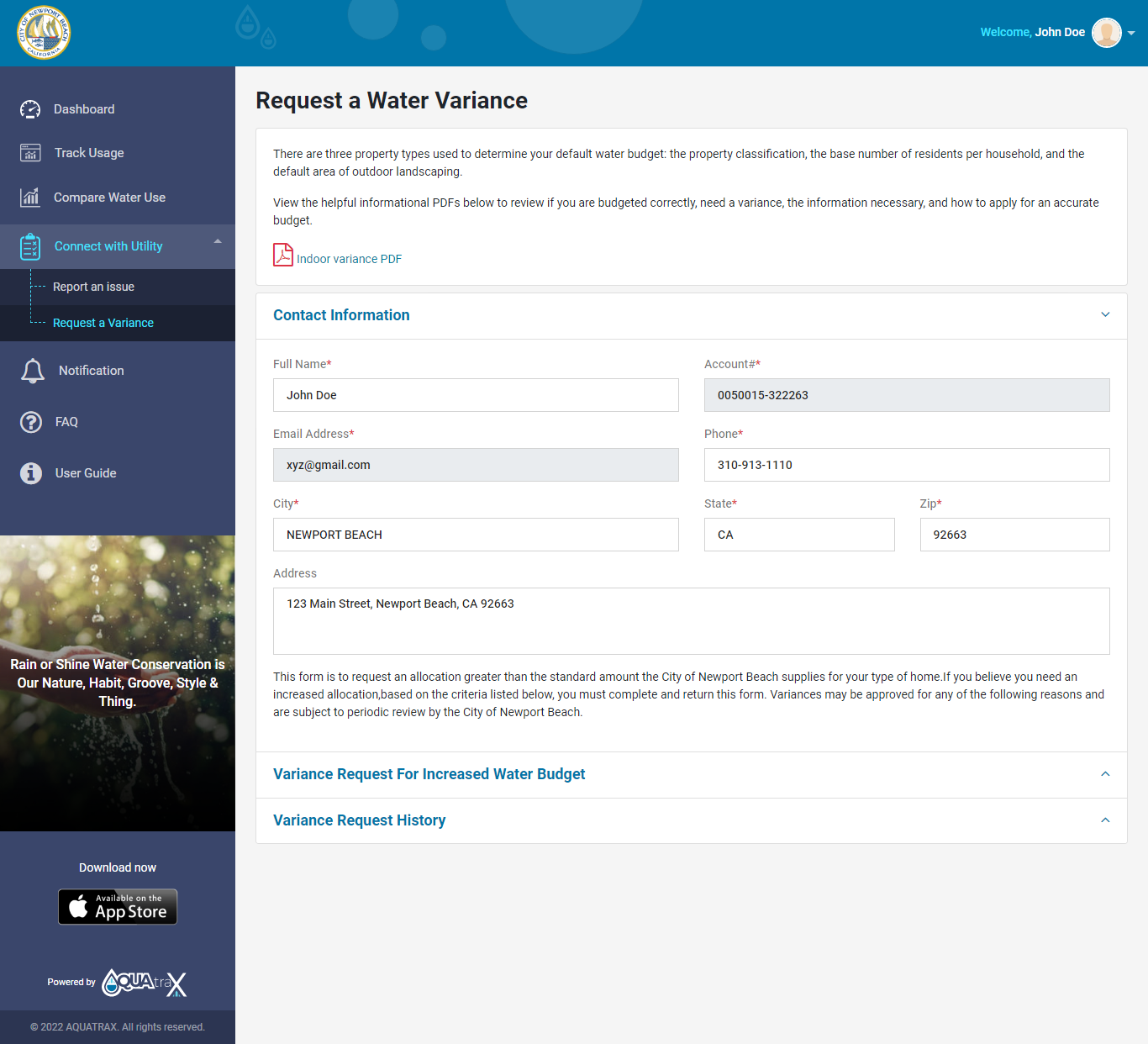
Click the “Variance Request For Increased Water Budget” tab. From these choices : Indoor Variance, Outdoor Variance, Commercial, Others ; Select the one which will be the reason for variance request.
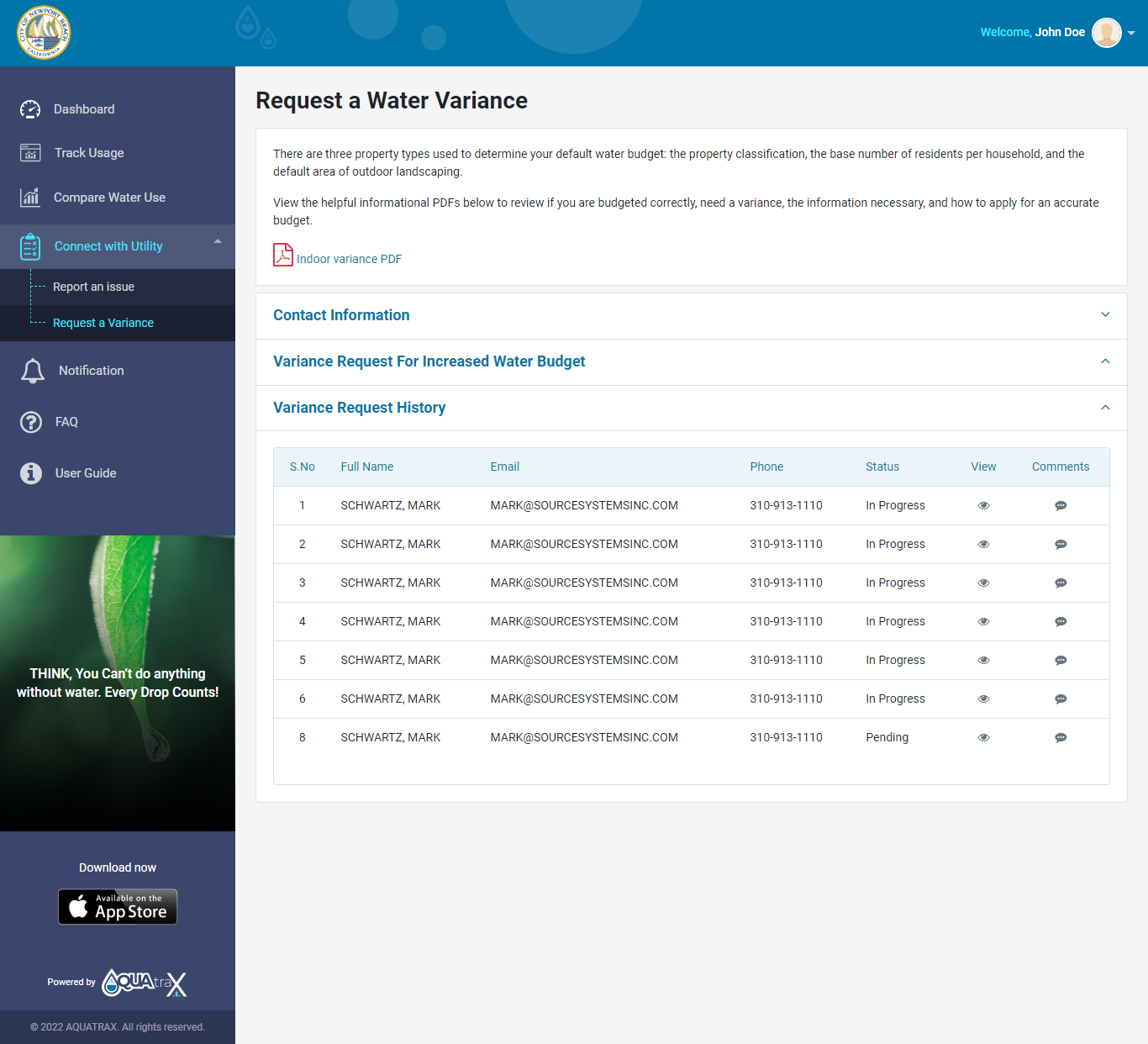
Verify all the “Variance Request History” details.
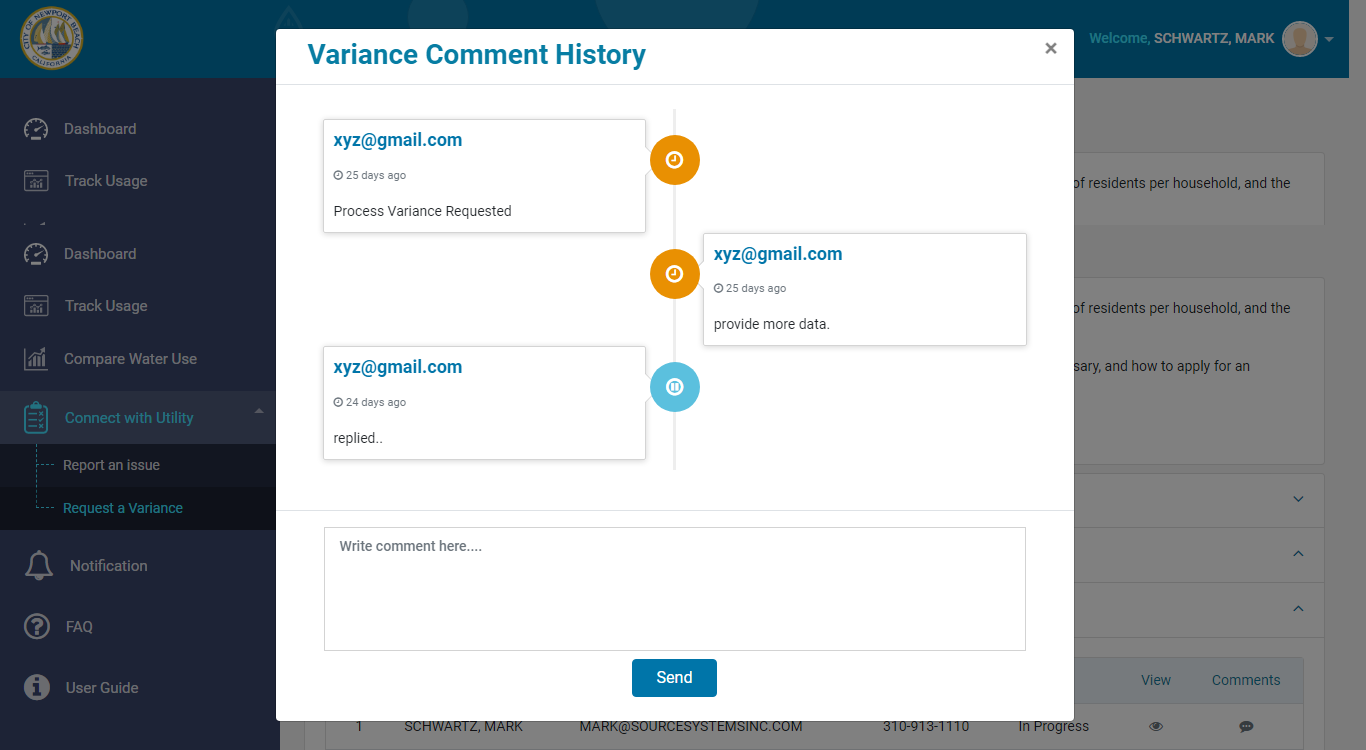
Inside grid click Comments icon then open Variance Comment History popup then after write comment and send.
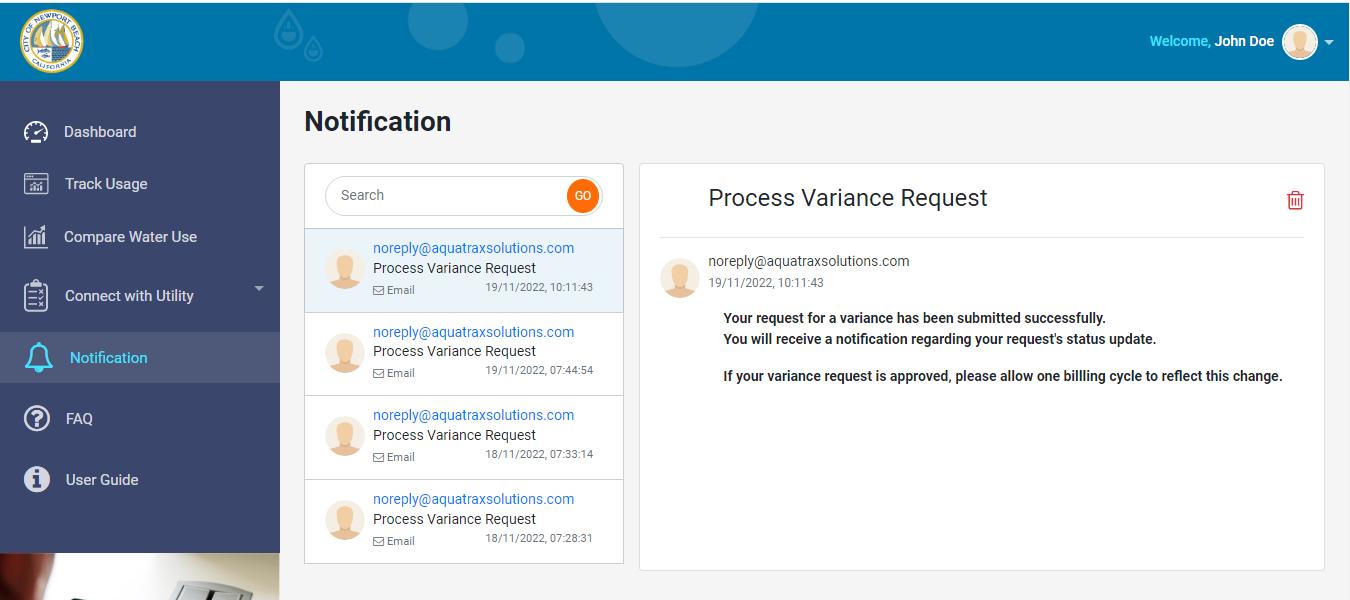
Notification Details
From left navigation tab, User can select “Notification” and Verify all the Notification emails.
Notification Preferences
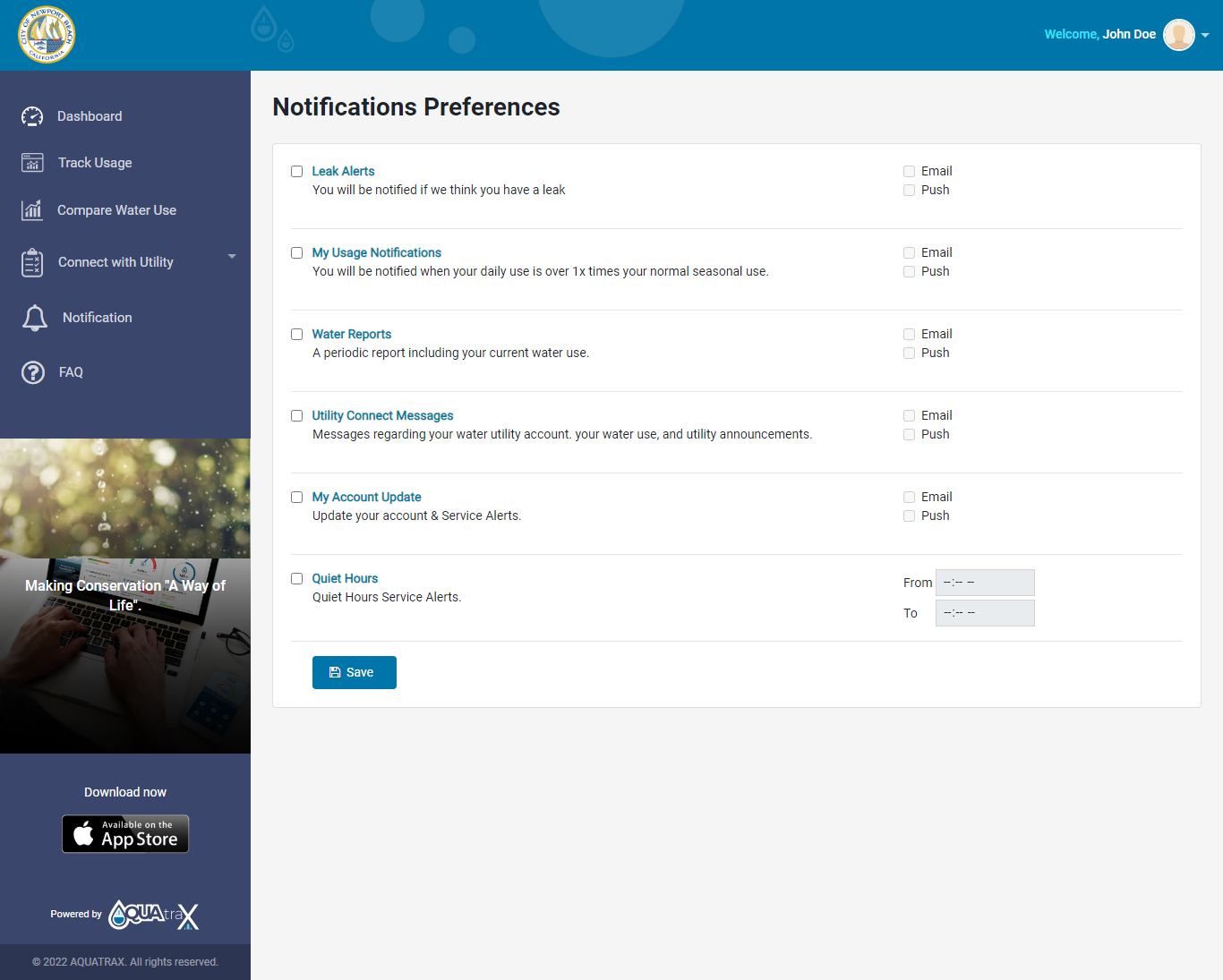
From the top right of the screen, user can select “Settings” and will be directed to Notification Preferences screen.
Here, user can set their preferences for receiving Email & Push notifications from Water District/Agency side.- Leak Alerts - Notified if we think you have a leak.
- My usage Notification.
- Water Reports (per Billing Cycle).
- Utility Connect Messages.
- My Account Updates.
- Quiet Hours - The customer can select quiet hours for Service Alerts.